QManager
QManager is the software on every build we sell. It runs on the modem itself and opens in a web browser on your home network. Nothing to install, no account to sign up for.
Step 1: Connect to your home network.
Step 2: Go to 192.168.224.1 in your browser.
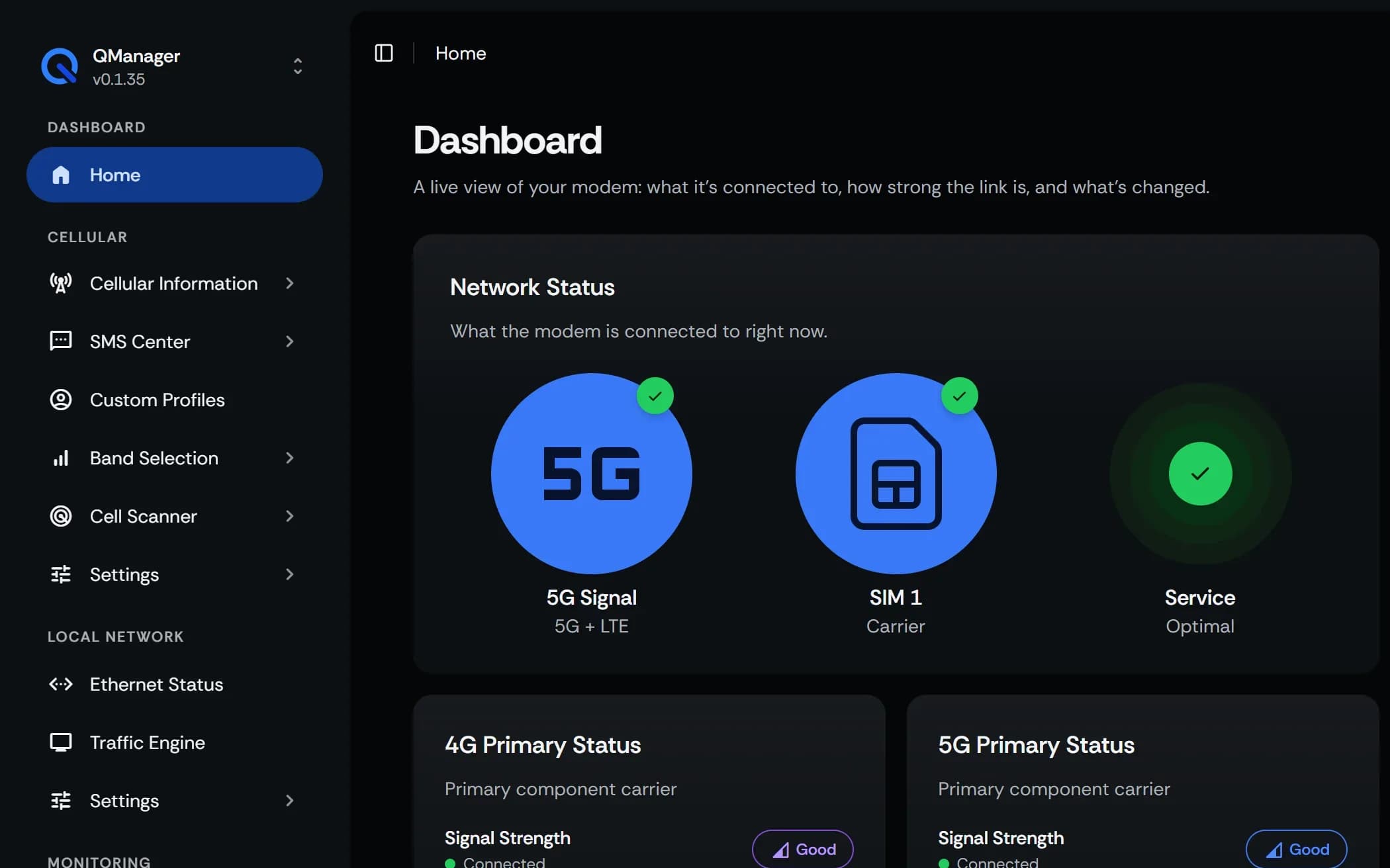
Dashboard
The first screen you see. It shows the network your modem is on, its SIM and service, and the live signal on each 4G and 5G carrier.
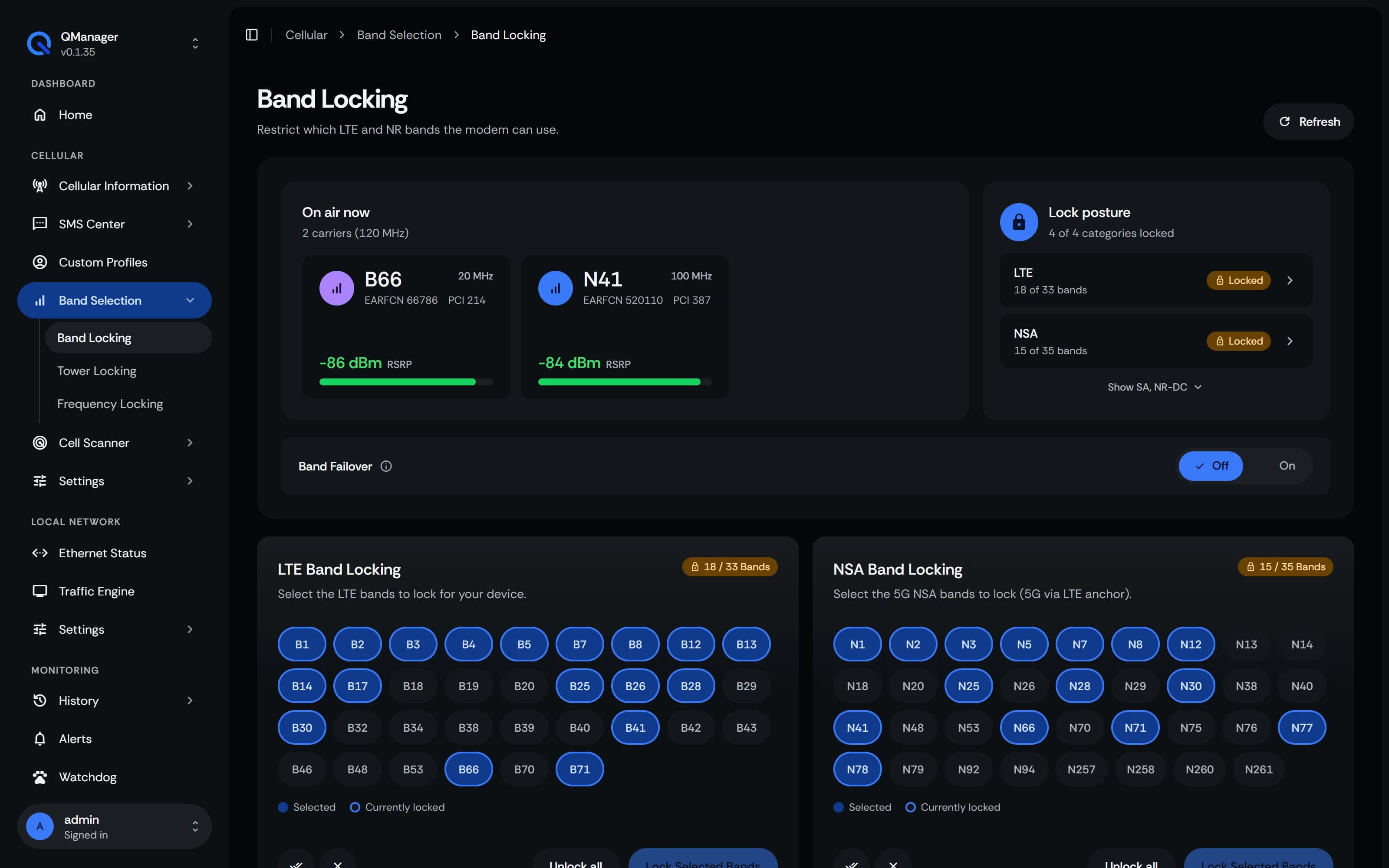
Band locking
Choose the LTE and 5G bands your modem is allowed to connect on. The bands on air right now are listed with their signal, beside your choices.
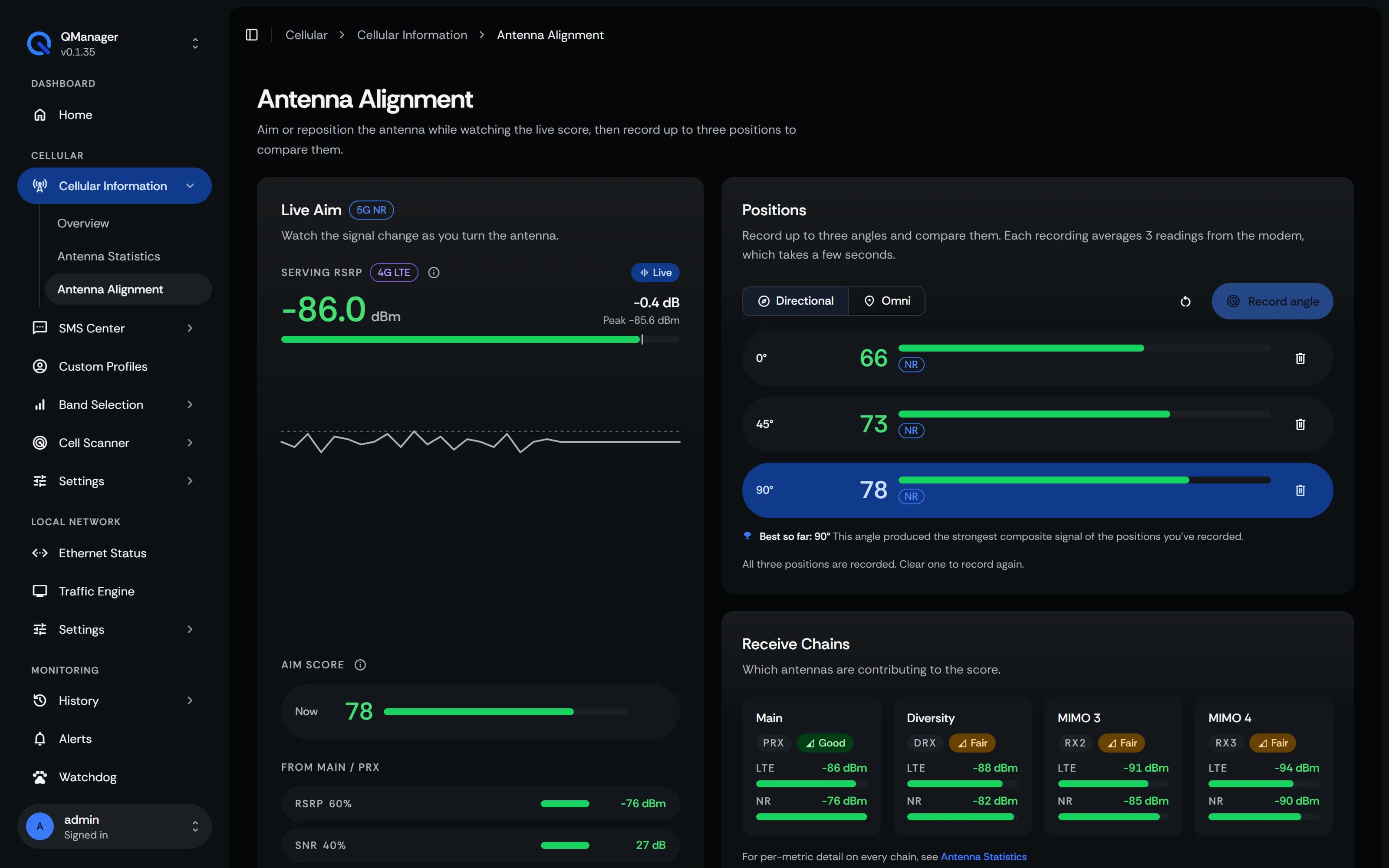
Antenna alignment
Aiming the outdoor modem? Turn it a little at a time while a live score follows the signal. Save up to three angles and compare each antenna's signal at every one.
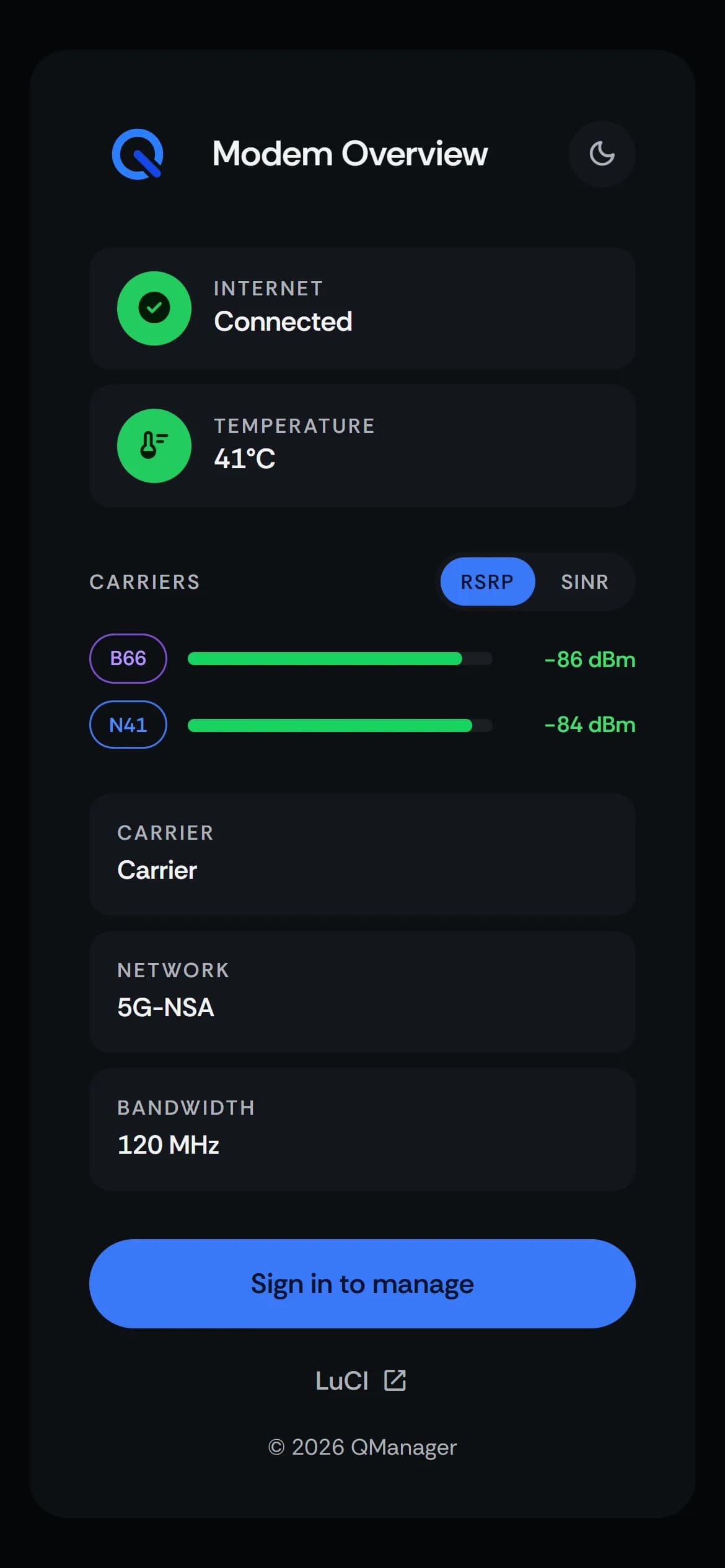
On your phone too
The same pages fit a phone screen, so you can check the signal while you stand next to the modem.
Also in QManager
Connection watchdog
Turn it on, and when the connection drops it steps through fixes on its own, from joining the network again up to a reboot.
Cell locking
Hold the modem on a tower you pick, on a schedule if you like, and let it go when that signal drops.
Custom profiles
Save a SIM's settings, such as its APN, and apply them on demand or as soon as that SIM goes in.
Alerts
A text or an email when the internet goes down, and another when it comes back.
SMS
Read and send text messages on the modem's SIM, one thread per contact, in your browser.
Remote access
Set up Tailscale from QManager to reach the modem when you're away from home.
Who makes it
QManager is developed by Russel Yasol, our Lead UI/UX Engineer.
How to order
For now, orders go through a ticket on our Discord. Open one in #buy-now, tell us what you want, and we'll take it from there.